
Why on a Mac
Hand off the call. Keep your flow.
Same Voyp
The AI calling you know from iOS, laid out for a desktop.
Type, don’t talk
Prefer typing to speaking? Write detailed briefs on a proper keyboard.
Built for access
If speaking on the phone is hard, Voyp talks for you. You never have to say a word.
Skip the hold
Voyp waits on hold and repeats itself, so you don’t have to.
How it works
Type it. Voyp calls. You read the result.
-
Type your instructions
Tell Voyp who to call and what you need from the call.
-
Voyp places the call
Your assistant introduces itself as an AI and handles the conversation for you.
-
Read the summary
A summary and full transcript arrive when it ends — plus the recording, if you turned it on.
Setup
Three settings to switch on.
macOS asks for each permission separately. Here’s what each one is for.
 SYSTEM SETTINGS → NOTIFICATIONS
Notifications
Voyp updates you about calls in the background, so allow notifications for Voyp.
 PRIVACY & SECURITY → MICROPHONE
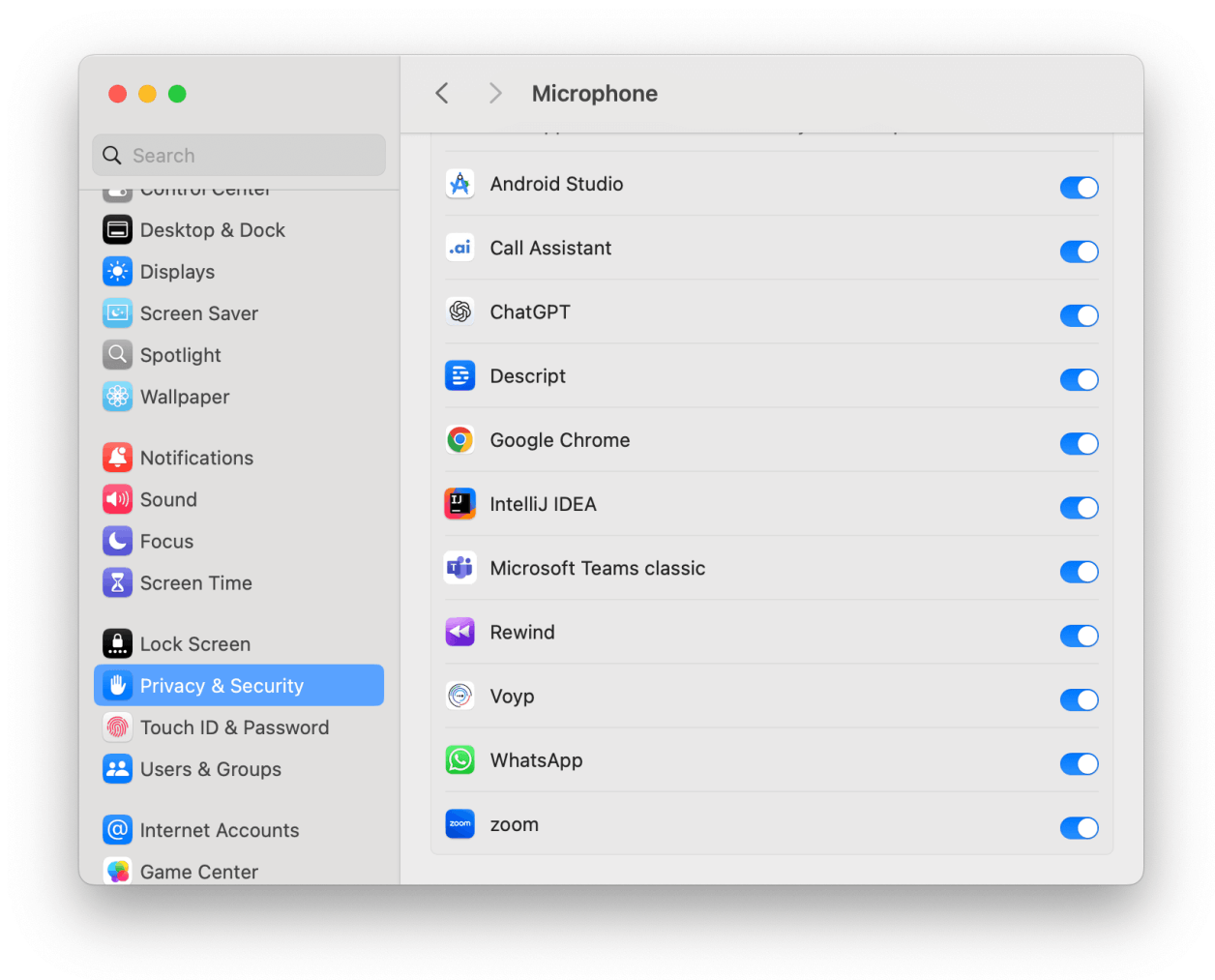
Microphone
Want to take over a call and speak yourself? Voyp needs microphone access for that.
 PRIVACY & SECURITY → CONTACTS
Contacts
Allow Contacts so your call log shows names instead of numbers.
Demo
Watch Voyp on a Mac.
From the typed brief to the finished call, in one short video.
Download on the App StoreOther ways in
Put Voyp on your dock.
Free to download. Calls use credits per minute; summaries and transcripts are always free.